


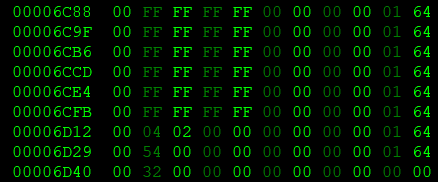
One of the interesting features we discovered in Petz is the favourites mechanic! According to the earliest info I found, it was discovered circa 2022 by by Reflet@Yabiko as part of the Petz Hacking and Modding Discord server. That server is currently the source of most info about how Petz's code works, actually!
Basically, each clothing item or toy in Petz has something called internal adjectives, which consist of colour, flavour, and many other things. Reflet has a more in-depth guide here.
There is a little tidbit of code in each petz' .pet file (more on what .pet files are here and more on editing them here) that determines which of these adjectives is their "favourites". For the sake of this tutorial, and my own limited knowledge, I'm only going to focus on colour and flavour.
For reference, I'm using the terms outlined in this thread by Bunni@Funfetti on the RKC.
There are 12 possible colours for a toy to have.
| Value | Colour Name |
|---|---|
| 0 | White |
| 1 | Black |
| 2 | Red |
| 3 | Green |
| 4 | Yellow |
| 5 | Blue |
| 6 | Purple |
| 7 | Pink |
| 8 | Orange |
| 9 | Brown |
| 10 | Grey |
| 11 | Clear |
Flavours, on the other hand, are a lot more complicated! There are 27 values, but huge swaths of them are unused. For simplicity, I'm going to ignore those!
♧ — Please note that a large portion of these terms are conjectural, meaning they were made by the Petz Community! I'm fairly certain there has been no official confirmation that leftovers are turkey-flavoured, for instance, but it seemed fitting. — ♧
| Value | Flavour Name |
|---|---|
| 0 | Chicken |
| 1 | Beef |
| 2 | Fish/Olives |
| 3 | Leftovers/Turkey |
| 4 | Milk |
| 5 | Sweets |
| 6 | Catnip |
| 7 | Cheese |
| 8 | Smooth/Colourful |
| 9 | Bouncy/Squeaky |
| 10 | Soft/Mouse |
| 11 | Bone |
| 12 | Wood/Cardboard |
| 13 | Metallic/Shiny |
| 14 | Water |
| 15 | Sandy |
| 17 | Bad |
| 23 | Chemicals |
| 24 | Garbage |
| 26 | Flea Spray bottle |
| 27 | Plants |
My fellow Petzer, Thor@Thor's Petz Site, made PetzChecker, a program that lets you see these values for yourself. You may want to get this program to check your results after changing the favourites!
You'll need a hexadecimal editor for this tutorial. I use HxD, because it's free and I always appreciate freeware. (It's also quite customizable, as you'll see from my screenshots.)
For this tutorial, I'm using a copy of Bluescreen's file!
The first step in changing your petz' favourites is to find where they are in the .pet file.
When you first open a petfile, you should see something like this (though maybe a bit less Matrix-y). On the left is your bytes, little packets of data, and the equivalent text-strings. Way over on the right side is a "data inspector" pane, which has some of the values. All three of these will be useful in different ways for this tutorial.

Before continuing, set the bytes per row to 23. Some say to set it to 16 or 17, but personally, I find 23 the best for this. This setting will rearrange the rows and columns of bytes, making it easier to see where we need to work!

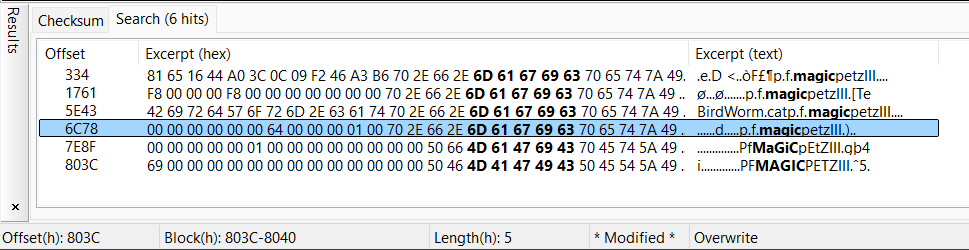
Open the "find and replace" dialog however you do that on your system. For me and my Windows 11, it's Ctrl-F. Make sure it's set to the "Text-string" tab. Search for "magic", and then, instead of hitting the "OK" button, select "search all". At the bottom, a list of text-strings containing "magic" will appear. Select whichever is the fourth one—this will vary from pet to pet, so pay no attention to the data!
Hopefully, when you click on this result, it will take you to a section of the bytes where you can see a big block of "FF" (zeroes), corresponding to the a block of the text-string "ÿ" (which, I just noticed, is the 255th hexadecimal character in text editors, fittingly). If not, try the third result instead (sometimes this happens to me). You may need to adjust bytes per row to see it easier.
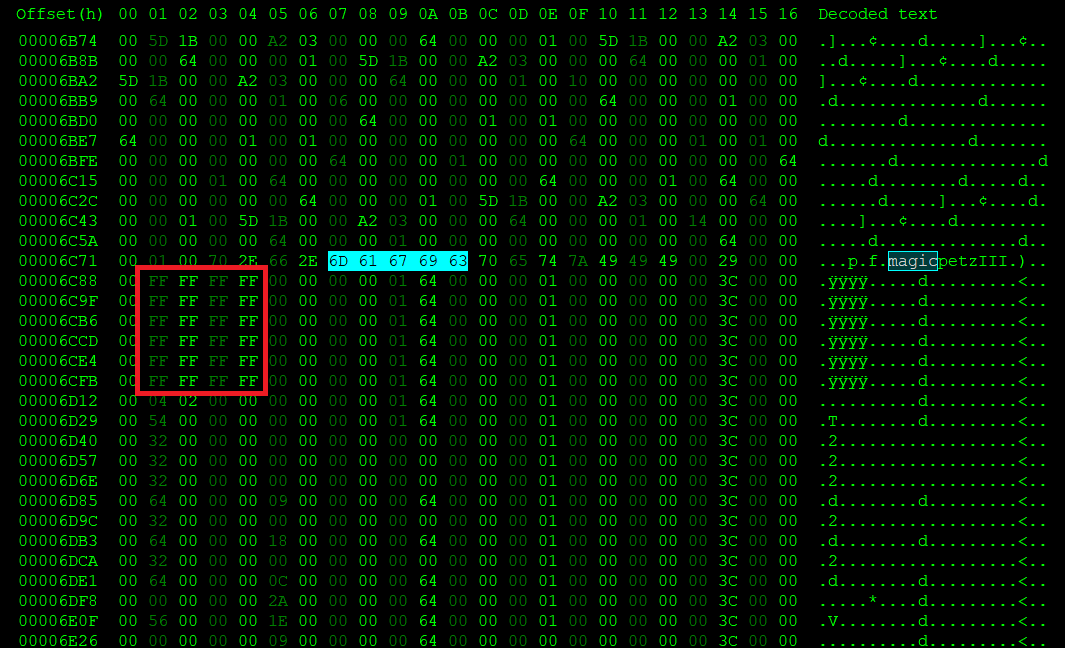
If you've found this, congratulations! The two rows below this are for your pet's favourite colours and flavours, respectively. In Bluescreen's case, these are 04 02 00 00 and 54 00 00 00, respectively. Let's deduce what those mean!
Here is where some would tell you to use a hexadecimal-to-binary converter, and deal with endian stuff, but I long ago figured out an easier way to determine this that doesn't require either. Bear with me here as I explain—I promise it's a lot easier than it sounds.
Let's start with Bluescreen's favourite colours. I known from raising him that his favourite colours are red and brown. The bytes confirm this, when you know what to look for—but how?
Let's go over to that data inspector pane I mentioned earlier. I'm going to select the byte 04 first. Here, I can see that its binary equivalent is 00000100. Because there is a 1 in the third position from the right, this is a value of 2 (counting for 0, 1, and then 2), repsresenting red!
Likewise, let's select the 02 beside it. This one is 00000010, or "1" if it was a normal byte. Because this is the second byte that isn't 00, add 8 to the value to account for the previous byte. Now we can see that this is actually a value of 9—brown!
It's that easy! Just make sure to work the binary from right to left, and to work on each byte that isn't 00 from left to right!
For simplicity, I've also provided a table of what each colour byte looks like on its own. Since there are only 12 colour options, there will only ever be maximum 2 bytes that aren't 00! Flavours are a bit more complicated, as you'll see.
| Bytes | Binary | Value | Colour |
|---|---|---|---|
| 01 00 | 00000001 00000000 | 0 | White |
| 02 00 | 00000010 00000000 | 1 | Black |
| 04 00 | 00000100 00000000 | 2 | Red |
| 08 00 | 00001000 00000000 | 3 | Green |
| 10 00 | 00010000 00000000 | 4 | Yellow |
| 20 00 | 00100000 00000000 | 5 | Blue |
| 20 00 | 01000000 00000000 | 6 | Purple |
| 40 00 | 10000000 00000000 | 7 | Pink |
| 00 01 | 00000000 00000001 | 8 | Orange |
| 00 02 | 00000000 00000010 | 9 | Brown |
| 00 01 | 00000000 00000100 | 10 | Grey |
| 00 01 | 00000000 00001000 | 11 | Clear |
And here's some examples of mixed values, for if your pet is bred.
| Bytes | Binary | Value | Colour |
|---|---|---|---|
| 04 02 | 00000100 00000010 | 2, 9 | Red, Brown |
| 09 00 | 00001001 00000000 | 0, 3 | White, Green |
| A0 01 | 10100000 00000001 | 5, 7, 8 | Blue, Pink, Orange |
| 84 0C | 10000100 00001100 | 2, 7, 10, 11 | Red, Pink, Grey, Clear |
| FF 0F | 11111111 00001111 | 0-11 | All Colours |
Let's tackle Bluescreen's favourite flavours next! 54 is 01010100. I can see that these are values of 2, 4, and 6, or fish, milk, and catnip!
Unlike colours, flavours can fill all 4 bytes in the row due to their max value of 27. This chart will only focus on used flavours, as before.
| Bytes | Binary | Value | Colour |
|---|---|---|---|
| 01 00 00 00 | 00000001 00000000 00000000 00000000 | 0 | Chicken |
| 02 00 00 00 | 00000010 00000000 00000000 00000000 | 1 | Beef |
| 04 00 00 00 | 00000100 00000000 00000000 00000000 | 2 | Fish/Olives |
| 08 00 00 00 | 00001000 00000000 00000000 00000000 | 3 | Leftovers/Turkey |
| 10 00 00 00 | 00010000 00000000 00000000 00000000 | 4 | Milk |
| 20 00 00 00 | 00100000 00000000 00000000 00000000 | 5 | Sweets |
| 40 00 00 00 | 01000000 00000000 00000000 00000000 | 6 | Catnip |
| 80 00 00 00 | 10000000 00000000 00000000 00000000 | 7 | Cheese |
| 00 01 00 00 | 00000000 00000001 00000000 00000000 | 8 | Smooth/Colourful |
| 00 02 00 00 | 00000000 00000010 00000000 00000000 | 9 | Bouncy/Squeaky |
| 00 04 00 00 | 00000000 00000100 00000000 00000000 | 10 | Soft/Mouse |
| 00 08 00 00 | 00000000 00001000 00000000 00000000 | 11 | Bone |
| 00 10 00 00 | 00000000 00010000 00000000 00000000 | 12 | Wood/Cardboard |
| 00 20 00 00 | 00000000 00100000 00000000 00000000 | 13 | Metallic/Shiny |
| 00 40 00 00 | 00000000 01000000 00000000 00000000 | 14 | Water/ |
| 00 80 00 00 | 00000000 10000000 00000000 00000000 | 15 | Sandy |
| 00 00 02 00 | 00000000 00000000 00000010 00000000 | 17 | Bad |
| 00 00 80 00 | 00000000 00000000 10000000 00000000 | 23 | Chemicals |
| 00 00 00 01 | 00000000 00000000 00000000 00000001 | 24 | Garbage |
| 00 00 00 04 | 00000000 00000000 00000000 00000100 | 26 | Flea Spray bottle |
| 00 00 00 08 | 00000000 00000000 00000000 00001000 | 27 | Plants |
And now some examples of mixes.
| Bytes | Binary | Value | Colour |
|---|---|---|---|
| 54 00 00 00 | 01010100 00000000 00000000 00000000 | 2, 4, 6 | Fish, Milk, Catnip |
| 82 08 00 00 | 10000010 00001000 00000000 00000000 | 1 | Beef, Cheese, Bone |
| 20 04 00 08 | 00100000 00000100 00000000 00001000 | 1 | Sweets, Soft/Mouse, Plants |
| 00 40 02 08 | 00000000 01000000 00000010 00001000 | 1 | Water, Bad, Flea Spray bottle |
| FF FF FF 0F | 11111111 11111111 11111111 00001111 | 0-27 | All Flavours |
Funnily enough, actually changing the value is easy. I needed to provide all this context, all these charts, only to tell you... select which byte you want to change, go to the binary, and put the new binary in. Easy as that.
If you try to save and use this petfile in your game as it is, you will almost certainly get the message that it is corrupted.
Never fear, your file is okay! This is due to a fun little code thing called a checksum. As I mentioned in my terms guide, a checksum is basically a value that checks if a file has been edited or not. If the checksum doesn't match what it was before, the file won't work—and sure enough, if you edit a petfile in a hex editor and then save it, the checksum won't match! You can see what your checksum is through a command in HxD, if you want to.
You could try and change them manually, like I used to, but this is a pain. What I recommend you do instead is download Reflet@Yabiko's PetzByte, a Python program that recalculates your petfile's checksum for you so it works again!
Neither can I (damn you Windows 11)!
In that case, put your petfile and PetzByte in the same folder. Search for the IDLE of your Python installation, open PetzByte, choose the "Run Customized" option, and type the filename of the petfile (e.g. "Bluescreen.pet") into the command line box that appears! Now you can follow the instructions, and PetzByte works as though you dragged and dropped.
There are some weird things about how the adjective system works, which I've included here because it's frankly the best place for it.